Setting up the studio
The owner does this once, on the device that becomes the most important one in the studio.
1. Create a passkey
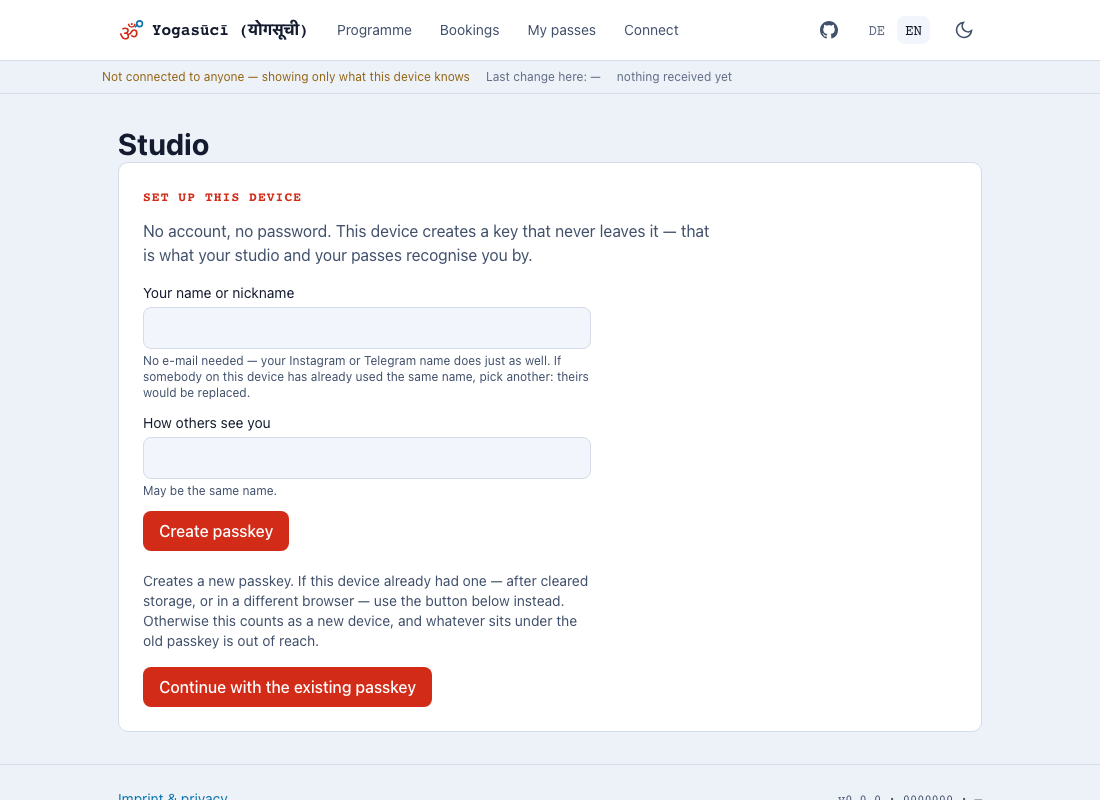
On first opening, the app asks for a passkey. Not a password — a key your device creates and never hands over. You unlock it the way you unlock the device: fingerprint, face or PIN.
You give a name — an email address is not needed, and would be the worse choice anyway: "frontdesk-oldtown" is plenty and gives away less.
One point that matters on a counter device. The first name is more than a label: it decides which key is meant. If two people create a key with the same name on the same device, the second replaces the first — no question asked, and the first one's passes are out of reach. So on a shared device, pick a name nobody there has used. On your own phone it makes no difference.
2. Name the studio
The name your students will see.
3. Add locations
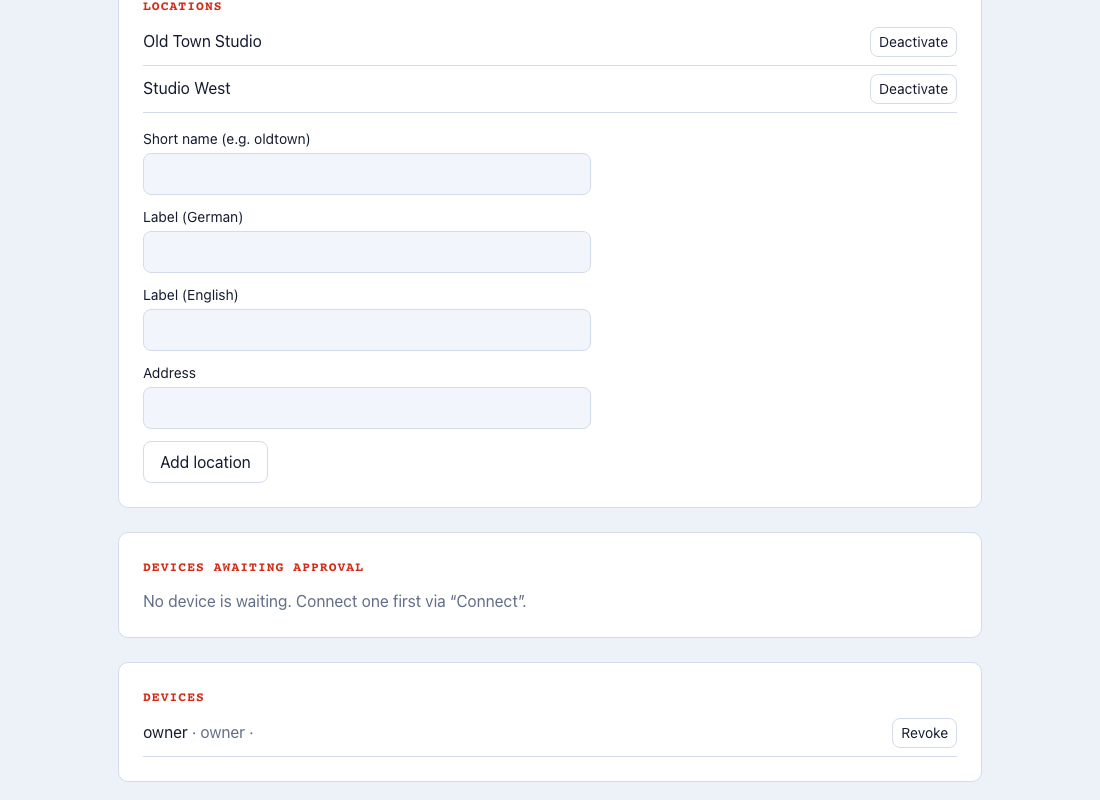
Each location gets a short id (altstadt, west) and a name in both languages.
The id shows up in reports, the name on screen.
Locations are never deleted, only deactivated. A location that once appeared on a ticket has to stay readable, or an old redemption can no longer be placed.
4. Programme and prices — or take them over from your website
You enter the timetable, passes and prices under Programme. If all of it is already on your website, you do not have to retype it: at the bottom of that same page is Take over a programme. You copy a prompt there, run it in an AI assistant of your choosing, and paste the answer back. Nothing is written until you have reviewed it, and we never see your website.
How it works in detail — what regularly does not come through, why to check the prices, and what to do when an import went wrong — is under Programme and prices.
5. Connect a second device — do not skip this
The most important step on this page If this one device is lost, nobody can approve or revoke a device again. There is no provider who restores that.
The app shows a warning for as long as the studio has one device, and it only goes away once a second one is approved. It cannot be dismissed — deliberately.
How to do it: Devices.
6. Make a backup
Under Registry → Export you download a file with everything this device knows, including the signed receipts. Put it where your bookkeeping lives.
Do it regularly. With no server, that file is the only backup that survives losing all your devices.